Why file upload matters
Many online tools ask you to upload a file before they can compress, convert, merge, or edit it. That is convenient, but it also means the file leaves your device. For public marketing images this may not matter. For invoices, contracts, internal reports, ID scans, source files, client assets, and unpublished media, it matters a lot.
A private browser-based tool takes a different approach. The web page loads the tool code, then the browser processes the file locally on your device. The file is not transferred to the tool provider's server for processing. This is the main reason EaziApps focuses on local browser tools instead of account-based cloud workflows.
When local browser processing is the right choice
Use a local browser tool when the file is sensitive, small enough for your device to handle, and the task can be completed without cloud storage.
Good examples include:
- Compressing a PDF before attaching it to email
- Removing a background from a product photo
- Converting a document into Markdown for an AI assistant
- Merging a few PDF files into one packet
- Compressing a short video for upload to a form
- Generating an invoice without creating an account
The common pattern is simple: you need a quick result, but you do not want a third-party service to store the original file.
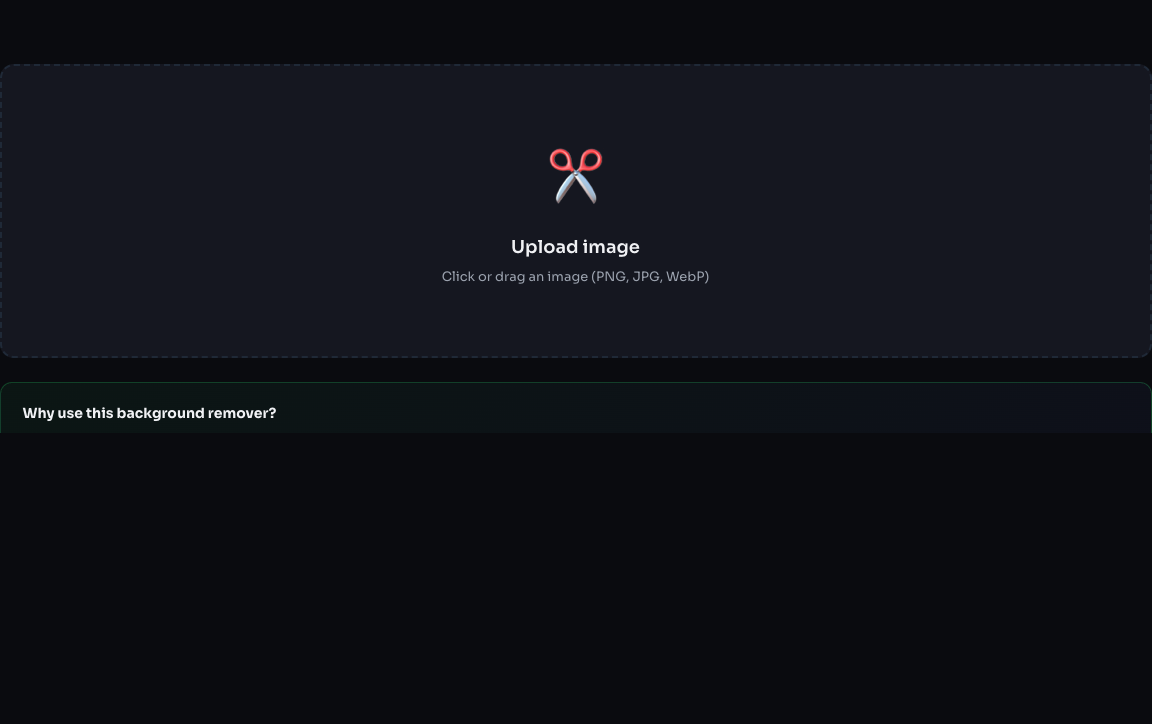
A tool should explain local processing before you choose a file, not hide the privacy detail in a policy page.
How to check whether a tool really avoids uploads
Look for concrete explanations, not vague privacy claims. A useful tool page should explain where processing happens, what libraries or browser APIs are used, and what limitations come from local processing.
For example, a local PDF compressor may work well for file size reduction, but it can use more memory on very large documents. A local background remover may need to download an AI model the first time it runs. Those limitations are normal. In fact, clear limitations are a good sign because they show the publisher understands how the tool works.
A repeatable browser check
You can inspect the claim without trusting marketing copy alone:
- Open the browser developer tools and select the Network panel.
- Clear existing requests, then choose a non-sensitive test file.
- Run the operation and look for an outgoing request containing the file or a large request body.
- Repeat once with the browser offline after the tool and any required model have loaded.
Some tools load libraries or an AI model from the web. That network activity is not the same as uploading the selected file. Our testing methodology explains what we check and where local processing has practical limits.
Practical workflow for sensitive files
- Open the tool page before selecting a file.
- Read the privacy note near the upload area.
- Use a copy of the original file if the file is important.
- Process the file locally in the browser.
- Download the result and compare it with the original.
- Close the browser tab when finished.
If the file is highly confidential, you can also disconnect from the network after the tool has loaded. Not every browser-based tool will continue working offline, but tools that have already loaded their local code often can complete simple work without a live connection.
What browser-based tools cannot do
Local processing is not magic. Very large videos can be slow because your laptop or phone is doing the work. Some AI tools need a first-run model download. Some PDF operations can use significant memory. If you need team collaboration, cloud backups, or cross-device project history, a cloud service may be more appropriate.
The decision is not "cloud bad, browser good." The decision is whether a specific file should leave your device for a specific task.
Recommended EaziApps tools for private workflows
- PDF Compressor for reducing document size before email.
- Background Remover for creating transparent PNGs locally.
- Document to Markdown for preparing documents for ChatGPT or Claude.
- Video Compressor for reducing short videos without an account.
Bottom line
If the file is private and the task is simple, choose a browser-based tool that explains local processing clearly. You get the speed of an online tool without the main privacy cost of uploading the original file.