Background removal is often a privacy task
Product photos, ID-style portraits, internal screenshots, prototype images, and client assets can all contain information you do not want to upload casually. A background remover that runs in the browser is useful because the original image can stay on your device.
EaziApps Background Remover uses a local browser workflow. The first run may take longer because the AI model needs to load. After that, the browser can reuse cached resources and the experience should feel faster.
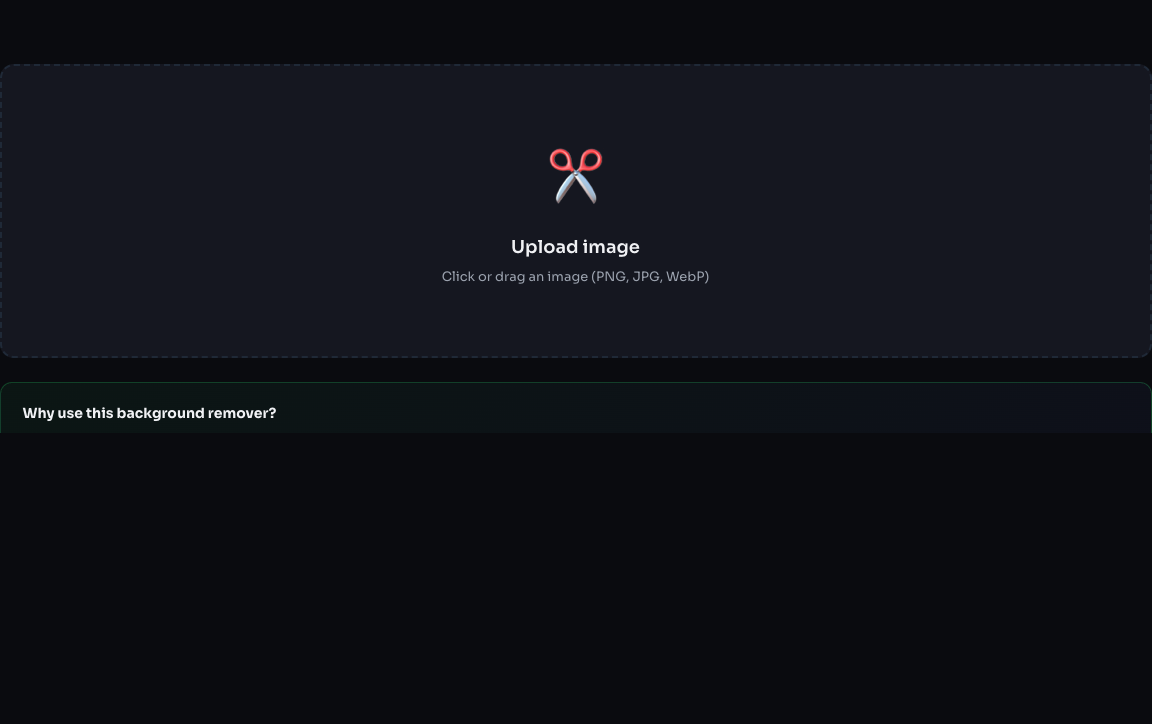
The interface identifies that processing happens on the device before the user selects an image.
What first-run loading means
AI background removal needs a model. When a tool runs locally, the browser may download that model before processing your image. This can feel slower than a cloud service on the first attempt, but it is also the reason the image does not need to be uploaded for processing.
A clear loading message is important. If a tool says it is loading an AI model locally, that is different from a vague spinner with no explanation.
Best images for clean results
You get better cutouts when:
- The subject is clearly separated from the background.
- The image is not heavily blurred.
- The subject is well lit.
- The background has a different color from the subject.
- Hair, fur, and transparent objects are not the main focus.
Cloud tools can sometimes produce better fine-edge results because they use large server-side models. Local browser tools are useful when an on-device workflow and no account matter more than perfect hair-level masking. Always verify the downloaded dimensions and edge quality.
Recommended workflow
- Open Background Remover.
- Choose a clear source image.
- Wait for the local model to load.
- Preview the cutout.
- Download the transparent PNG.
- Compress the PNG if you need a smaller file.
For web use, run the final PNG through Image Compress to reduce file size. Transparent PNGs can become large, especially when the original photo is high resolution.
Check privacy and output quality
Test with a non-sensitive image first. In the browser Network panel, confirm that choosing and processing the image does not create a file-upload request. Then inspect the downloaded PNG at full size for edge halos, missing details, and unwanted transparent areas. See our testing methodology for the repeatable check used across promoted tools.
When to use a cloud service instead
Use a professional cloud or desktop editor when you need:
- Perfect hair masking
- Batch processing for hundreds of images
- Manual edge refinement
- Team review workflows
- API automation
Use a local browser tool when you need a quick private cutout without creating an account or uploading the source image.
Bottom line
Browser-based background removal is not only a convenience feature. It is a privacy choice. For many product photos, profile images, and simple cutouts, local processing gives a strong result without sending the original image to another server.